IGE Jupyterhub#
Access the server#
A server of notebooks with ressources coming from ige-calcul1-7 has been deployed and is accessible for anyone with agalan account at the address : https://ige-jupyterhub.univ-grenoble-alpes.fr/
As of today (september 2026) it is only accessible from IGE network or via UGA’s VPN
First, you will be asked for your agalan login/password

Then the landing page looks like this :

You get to choose several parameters for your jupyterhub session :
Partition : ioperf is preferred for an intensive data reading/writing, compute for other use and gpu if you need one
Time, Number of cores, Memory
User interface : you can choose to open a jupyterlab, jupyter notebook or a terminal
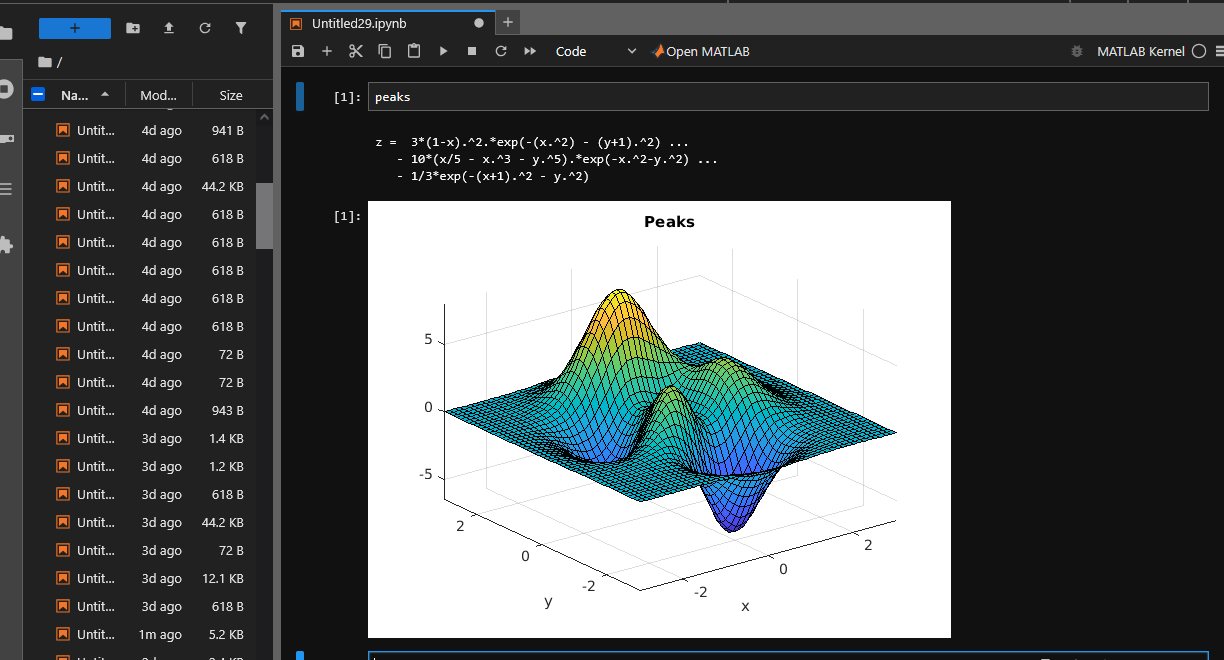
Finally you are connected to the job and have access to different kernels (pre-built: Matlab +your own : R/…)

Workspaces#
On the jupyterhub server you have access to difference type of workspaces for different usage :
your home workspace will always be the same for your sessions and is hosted at /mnt/summer/juping/home/alberta (also accessible from IGE clusters ige-calcul1-7) : this is where you can store light scripts, texts files, quota : 3Gb / user
your workdir workspace, also accessible from any of your sessions and IGE clusters and accessible at /workdir/yourteam/yourlogin : this is where you can read, write, store hot data that you are currently producing or using, quota : XGb / user
some storedir workspace : depending on your team and/or the projects you are working in, you may have access to some SUMMER storage : this is where you will store cold data that you do not need for the moment but you may need later, quota : depending on your team/project [if the SUMMER storage of your team/project is not accessible from the jupyterhub, ask ige-jupyterhub@univ-grenoble-alpes.fr to mount it]
If you need to share your data with outside of the lab, check the erddap catalog for IGE or S3 point for IGE
Exit the server#
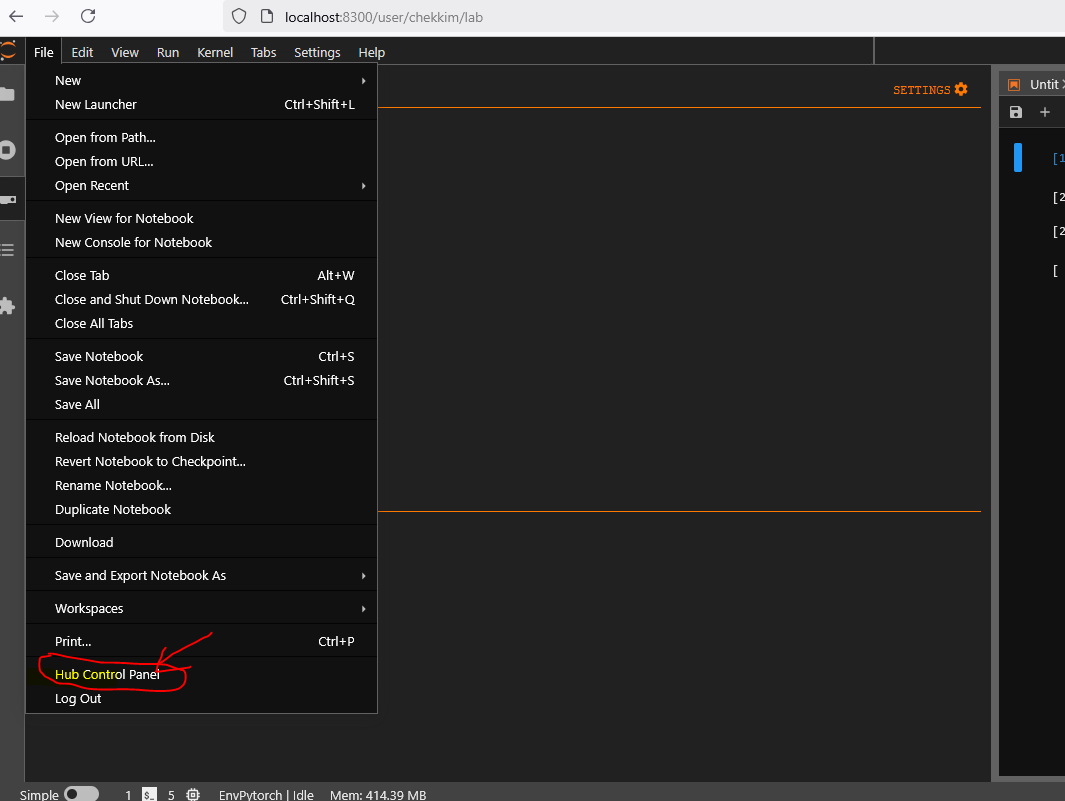
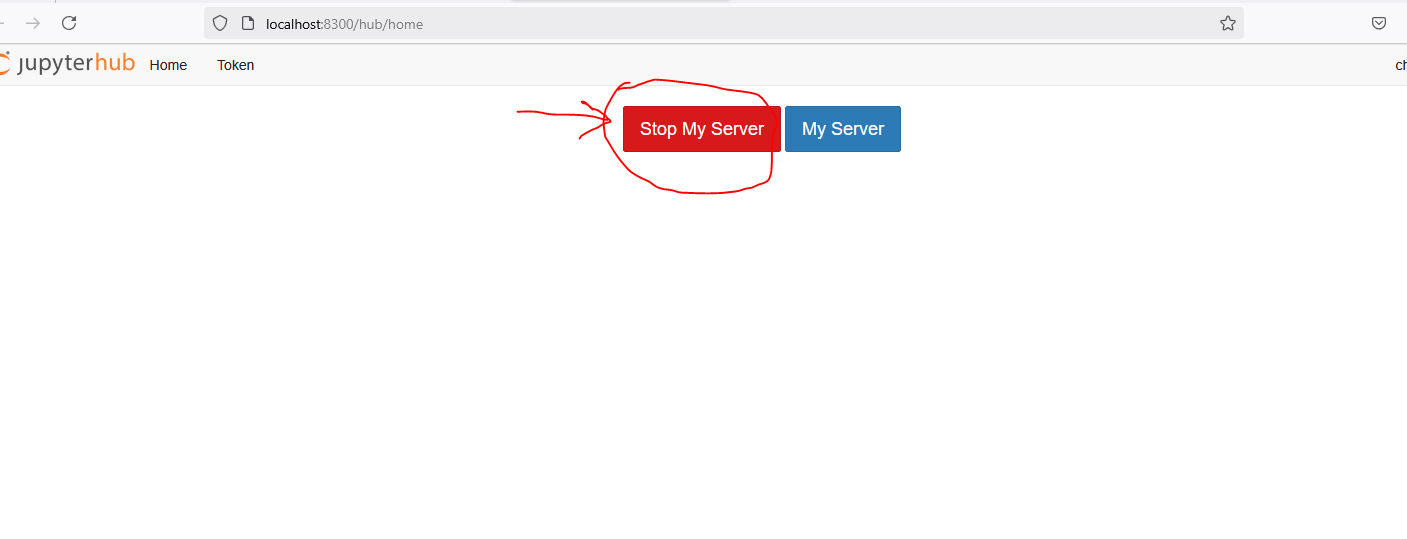
In order to stop the kernel and kill the allocated job go to Hub Control Panel
Restart the server#
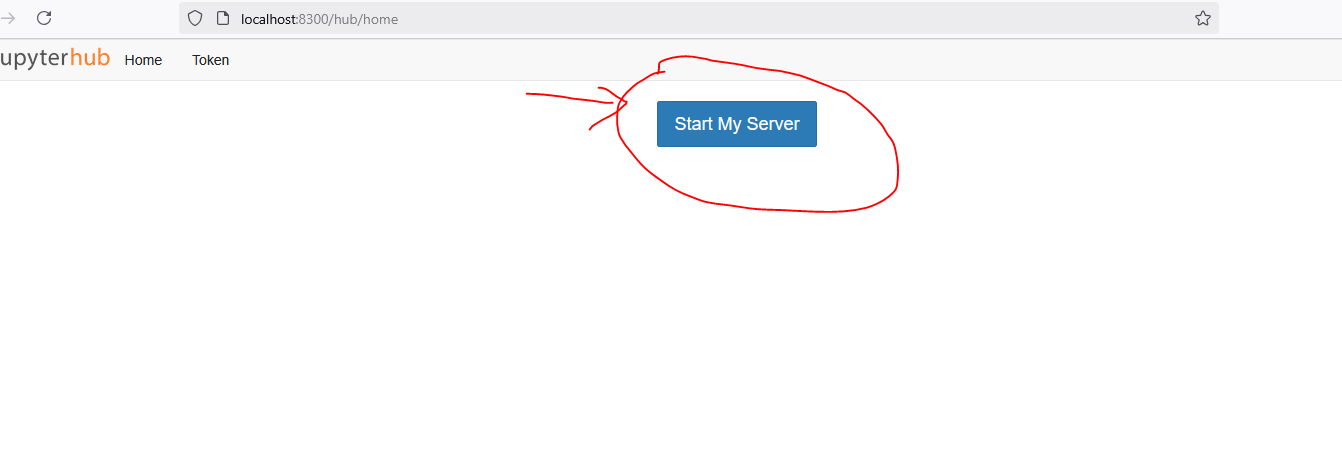
You can restart the server , by clicking on the button Start My Server It will ask you again for new ressources and connect you to the server
Computing environment#
3 pangeo style environments are provided and can be reproduced from their configuration files hosted here :
pangeo-notebook : some python librairies needed to manage data (xarray, pandas, …), produce plots (matplotlib, cartopy, …) and compute (numpy, scipy, …) and many other
pangeo-pytorch : pangeo-notebook + pytorch (see the list here
pangeo-tfjax : pangeo-notebook + tensorflow +jax (see the list here
You can also add your own kernel/ environment created with micromamba for example, see examples below
R example#
Create your R environment
  micromamba create -n Renv python=3.10 -c conda-forge
  micromamba activate Renv
  micromamba install r r-base r-essentials -c conda-forge
Add the kernel to your jupyterlab
Open R terminal
 install.packages('IRkernel')
 IRkernel::installspec()
Pytorch example#
Create pytorch env
   micromamba create -n EnvPytorch python=3.10 -c conda-forge
   micromamba activate EnvPytorch
   micromamba install pytorch torchvision torchaudio  -c pytorch -c nvidia -c conda-forge
   micromamba install ipykernel  -c conda-forge
Install the pytorch environment
python -m ipykernel install --name EnvPytorch --user --display-name "Pytorch"
Run Vscode on the clusters#
Note
If you don’t need to use python and only vscode, you can select Terminal for the User Interface, instead of jupyterlab or jupyter This will open only a terminal on the server
Once you are connected to jupyterhub
Open a terminal from the jupyter launcher and get the informations to connect to the server in the output of your job
head -10 $HOME/jupyterhub_slurmspawner_$SLURM_JOBID.log
Example for my JOBID=8:
chekkim@ige-calcul2:~$ head -10  jupyterhub_slurmspawner_8.log
********************************************************************
Starting code-server in Slurm
Environment information:
Date: mer. 12 févr. 2025 14:53:13 CET
Allocated node: ige-calcul2
Node IP:
Path: /home/chekkim
Password to access VSCode: user_jobid
Listening on: 46479
********************************************************************
Then create an ssh tunnel with the given port
ssh -fNL 46479:localhost:46479 calcul1/2/3/4
and open the following URL in your web browser:
http://localhost:46479
Entre the password:
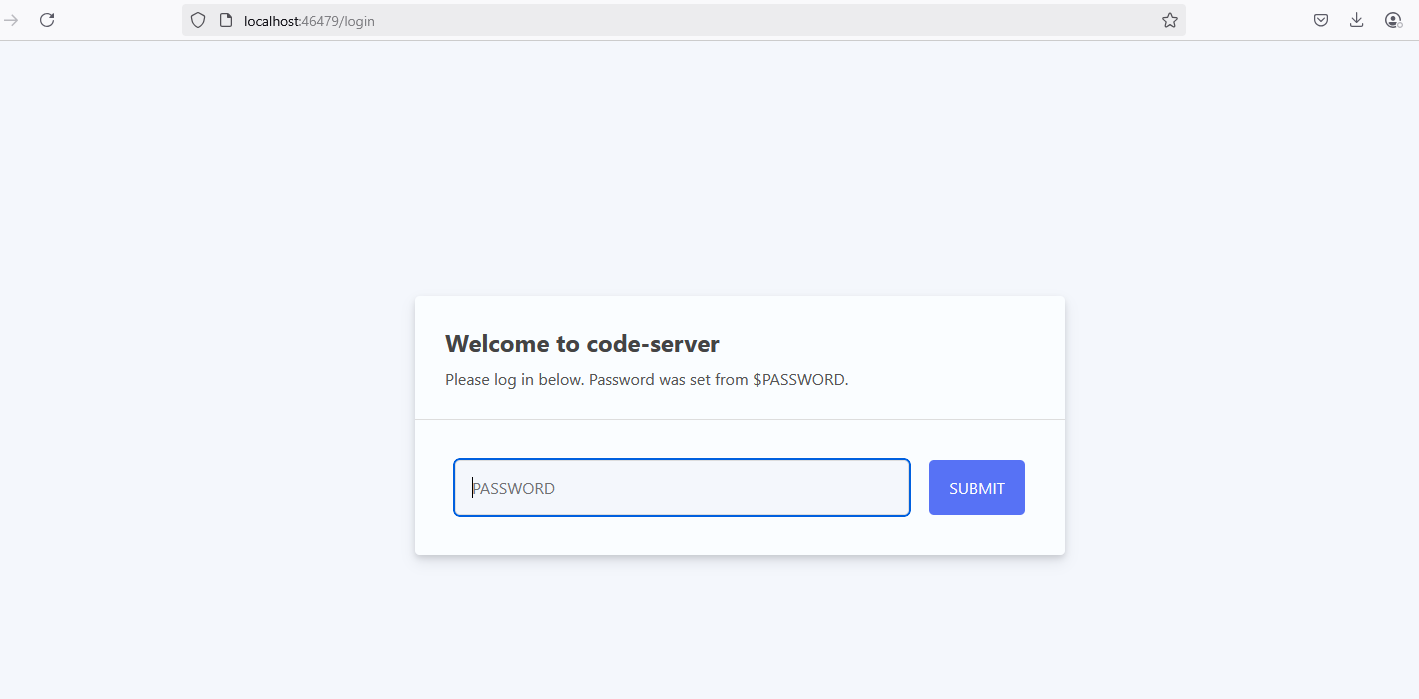
Then you can open any folder on the remote server
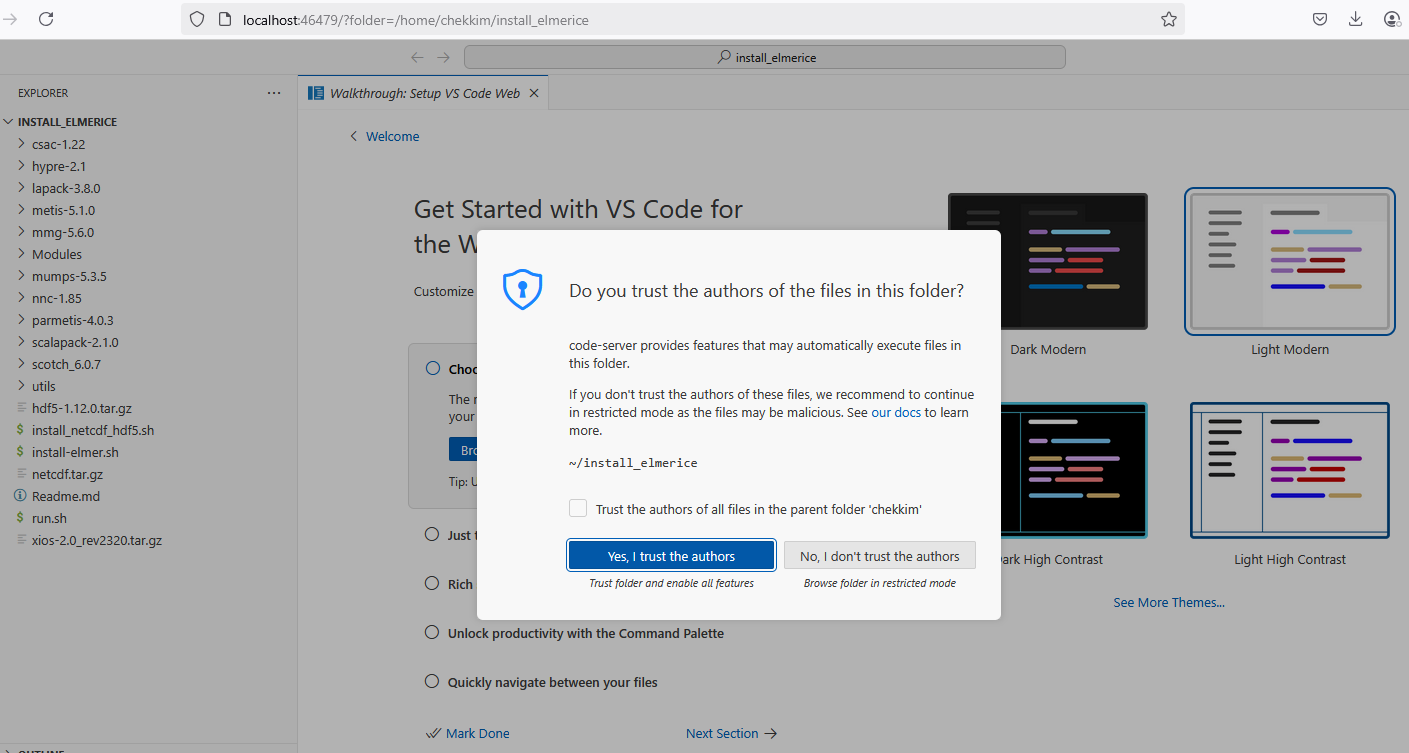
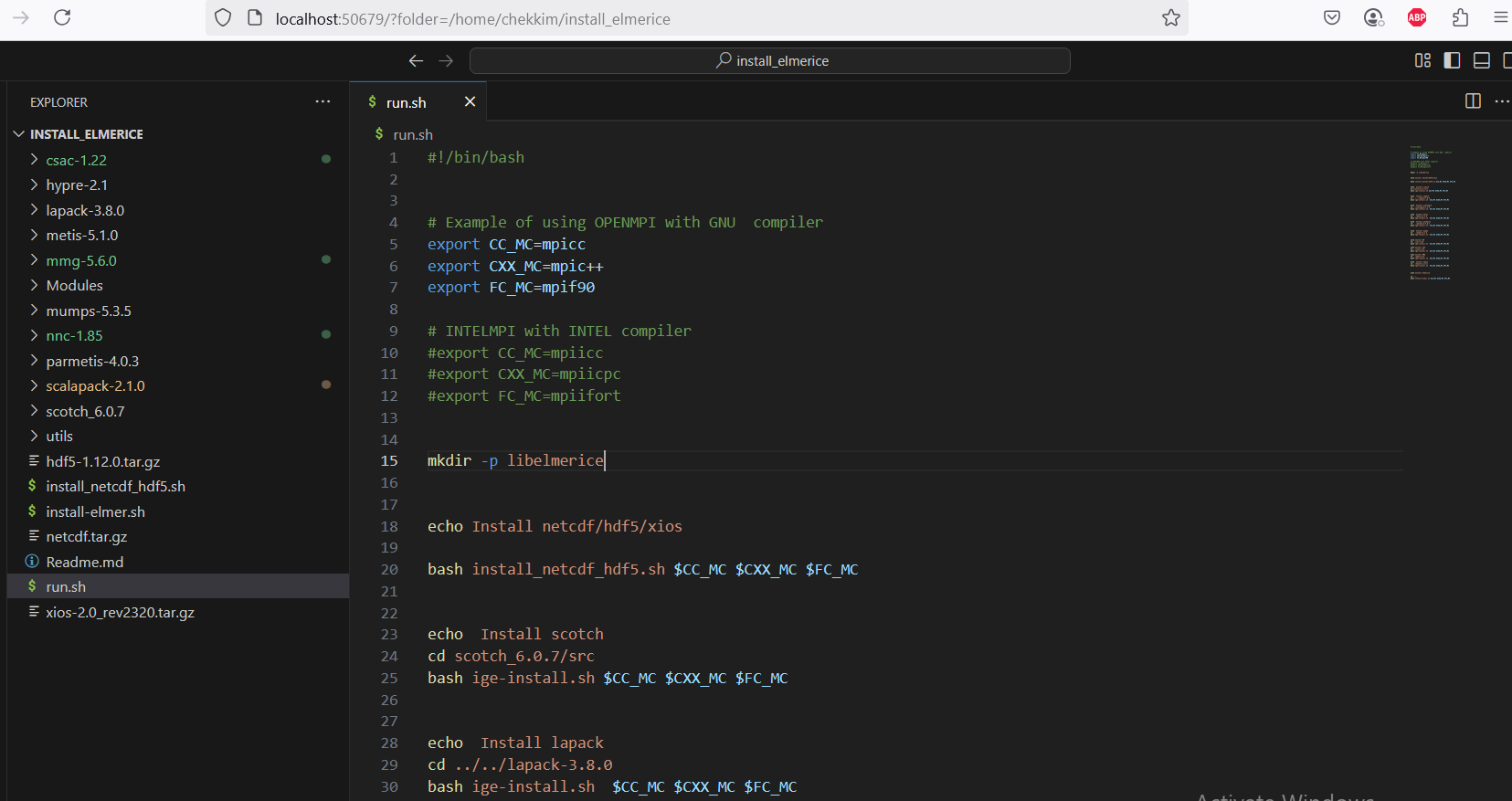
and that’s it. You can now modify your code and run vscode
Matlab usage#
Note
For the first usage you will be asked to give the license server (Network License Manager) 27000@matlab.ige-grenoble.fr
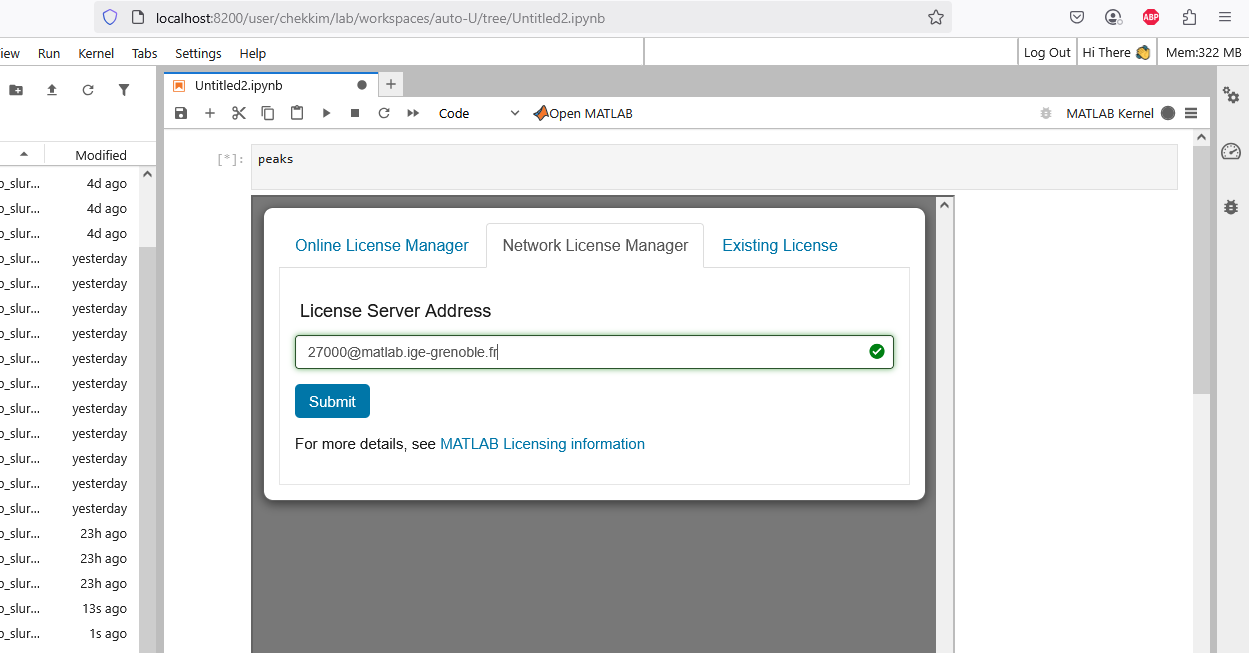
Once it is done, you will be able to run matlab and the configuration will be saved for future usages